

Summary created by Smart Answers AI
In summary:
- PCWorld reports that Windows Secure Boot certificates expire on June 24th, affecting both Windows 10 and 11 systems receiving security updates.
- Users must install latest Windows updates to receive new certificates, as failure to update could cause serious boot failures.
- While the deadline isn’t a hard cutoff, enabling Secure Boot now ensures automatic updates and enhanced protection against malware.
On June 24th—that’s tomorrow, as of this writing—Windows users will run into an important deadline: new Secure Boot certificates must be installed on all systems that use Secure Boot, the security feature that protects against various threats at startup. The first warning about updated certificates was issued back in January.
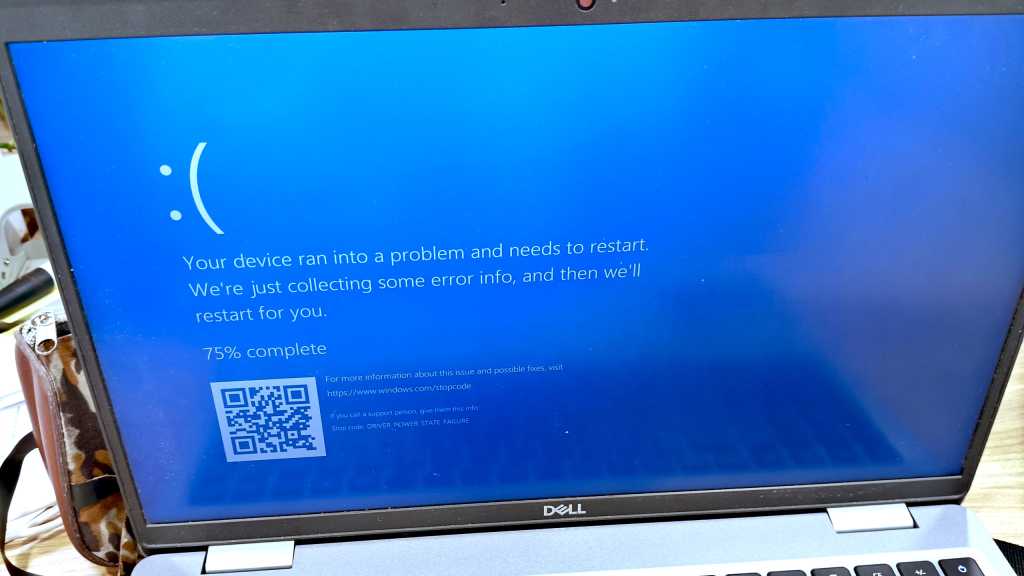
If your system doesn’t get new Secure Boot certificates, you could run into serious problems. Without these certificates, there’s no guarantee that Secure Boot will continue to work properly. In the worst case scenario, it could even lead to complete system failure, as affected PCs may no longer be able to boot up properly.
To be fair, Microsoft recently announced that the June 24th deadline isn’t a hard cutoff that will brick your PC—you still have the option to obtain certificates retroactively, at least until October 2026, but it’ll need to be done manually and is therefore not ideal.
Both Windows 11 and Windows 10 are affected, provided you are receiving security updates via the ESU program.
How to check Secure Boot on your PC
To be on the safe side and ensure that everything is in order with your certificates, we recommend the following steps:
- Make sure you’ve installed all the latest Windows updates. This is because Microsoft has been rolling out the new Secure Boot certificates gradually via Windows Update. The specific update that provides them to a given PC will vary from user to user.
- Use the new Secure Boot certificate indicator in Windows 11 to check the status of Secure Boot. In Windows Settings, under Privacy & security, look for Windows Security and then select Device Security to access the Secure Boot section. The status should be green, indicating that all necessary certificates are present.
- If you’re a system administrator and need to manually load Secure Boot and its relevant certificates, please read through Microsoft’s official support page. You’ll also find a link to Microsoft Support there in case you encounter further issues.
Important: It’s possible that Secure Boot isn’t enabled on your system at all. In this case, you don’t actually need updated certificates—as long as you intend to never use Secure Boot. However, if there’s a chance you’ll end up using Secure Boot at any time in the future, it’s best to enable it now so that it’s automatically updated with the latest certificates. Otherwise, enabling it at a later date could be problematic.
Microsoft recommends enabling Secure Boot for all users, as this security feature ensures that Windows is protected against malware and other potential threats during the boot process.
Further reading: Is Windows 11’s built-in antivirus security enough?
This article originally appeared on our sister publication PC-WELT and was translated and localized from German.
