

Microsoft is improving Windows 11’s Start menu, but alternative launchers are still currently better. First and foremost, they don’t automatically consult Bing before searching for your applications and files. Moreover, they include helpful extras (everything from an integrated calculator to quick system commands) and support diverse plug-ins that enable actions with your applications and the OS itself from anywhere.
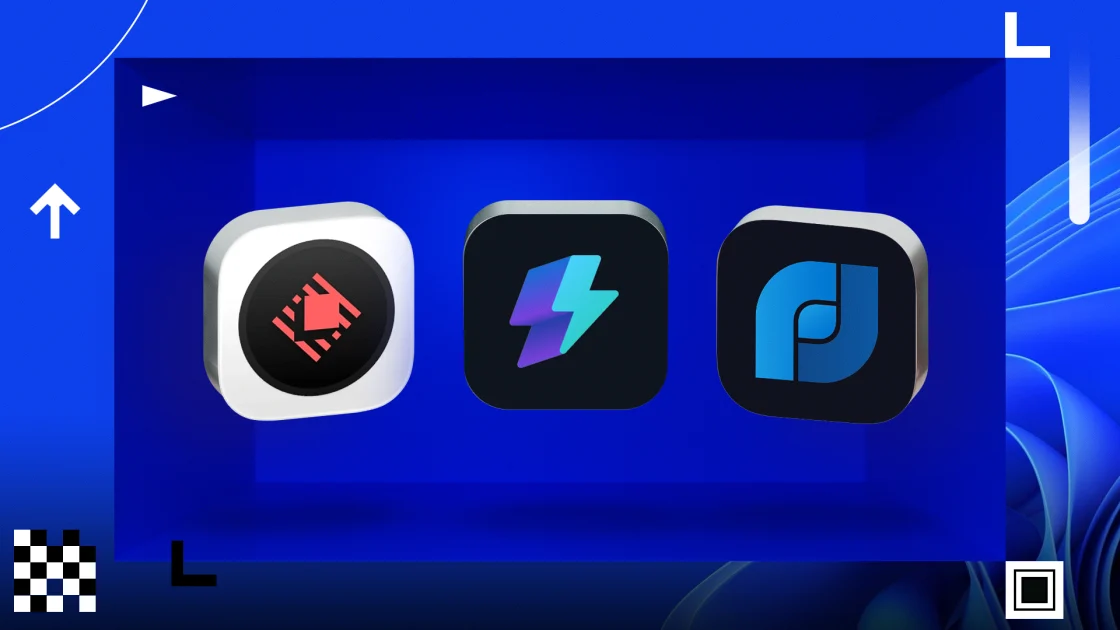
The three alternative Windows launchers I recommend are Flow Launcher, Raycast, and Microsoft’s own PowerToys Command Palette. They all work similarly. You can launch them via a customizable keyboard shortcut and simply start typing to open applications and perform other actions. Each has a convenient settings tool that lets you search for and install additional plug-ins, too. I cover all of the details below.
The Best Alternative Launchers I’ve Tried


Configuring a New Launcher Is Fast and Easy
Keep in mind that these launchers don’t fully replace every trace of the Start menu. Your PC will still show a Start button on the taskbar, for example, and the OS reserves the Windows key for the Start menu, by default. But as mentioned, you can still launch them with a dedicated keyboard shortcut and quickly customize other settings. Installing and uninstalling a launcher works just like it does for any other Windows application.


The Future of Windows Is Every Device You Own
1. Flow Launcher: A Fast, Open-Source Power User Favorite
Flow Launcher is free, open source, and popular among Windows enthusiasts. Beyond launching applications, Flow Launcher supports both the speedy Everything file search application and Windows file search. It also lets you search the web with any search engine you prefer and open the results in your default web browser. Flow Launcher is faster at searches than the Start menu in my experience because it doesn’t load web content in the launcher itself; the latter’s Bing integration, conversely, causes delays.
After installation, you can press the default Alt+Space hotkey to open the Flow Launcher window and start typing. It also supports keyword shortcuts, so you can specify exactly what you want to search for, unlike the Start menu. For example, you can type the letter ‘s’ to restrict your search to only Windows settings. These shortcuts are adjustable. Flow Launcher is more visually customizable than the Start menu, too: You can build custom themes on its website.
Flow Launcher’s settings window lets you search for and install a variety of plug-ins. You can get plug-ins for finding open browser tabs, searching your entries in note-taking applications, toggling dark mode with a keyword shortcut, and more. The launcher doesn’t include AI features, but it does support user-created plug-ins that connect to ChatGPT, Claude, Gemini, and other AI tools.

Flow Launcher lets you assign customizable keywords shortcuts for individual search plug-ins (Credit: Flow Launcher/PCMag)
2. Raycast: Polished Interface, Powerful Extensions, and Built-In AI
Raycast is popular on macOS, and the launcher has a Windows beta version available. This application uses a freemium model; the core launcher and its thousands of extensions are free. A paid subscription activates Raycast AI, cloud syncing, unlimited notes in the integrated Raycast Notes app, and other minor features. After installation, you can press Alt+Space to launch it.
This application has a larger library of community-created extensions than Flow Launcher. You can find and install them from within Raycast’s settings. Beyond the traditional launcher experience, Raycast focuses on keyboard-centric automations. For example, it has a Snippets feature that functions like a text expander. You can create snippets of text, and Raycast will automatically insert them when you type a keyword in any application.
Raycast’s premium AI features are clearly important for the company, and the application supports customizable AI commands for taking actions on text. If you wish the Start menu had more AI integration, Raycast is compelling. It also benefits from a polished, modern interface, and I’ve heard from people who prefer it to Flow Launcher for its sleek design and large library of extensions.
Recommended by Our Editors

Raycast’s launcher has an optional AI chat feature (Credit: Raycast/PCMag)
3. PowerToys Command Palette: Microsoft’s Own Lightweight Alternative
Microsoft itself has long dabbled with alternate launchers. The company’s excellent free PowerToys package includes two alternate launchers: The newer PowerToys Command Palette and the older PowerToys Run. Command Palette provides a more modern experience than Run and lets you easily download add-ons via an extensions gallery. Just expect fewer options compared with Flow Launcher and Raycast. It uses the Windows+Alt+Space shortcut by default; you can press this to launch it if you’ve already installed PowerToys on your PC.
Unlike the Start menu, Command Palette doesn’t force you to use Bing and Microsoft Edge. It respects your default web browser and preferred search engine. It also includes easy access to other PowerToys, though both Flow Launcher and Raycast offer third-party extensions you can install to launch PowerToys tools.
If you want to skip third-party software and already have PowerToys installed, Command Palette is worth a try. It now has an optional persistent dock you can pin to the top of your desktop, too.

Microsoft’s Command Palette feels like a part of Windows 11 (Credit: Microsoft/PCMag)
Keyboard-Centric Launchers Are a Major Productivity Upgrade
Windows 11’s Start menu handles the basics fine, but alternative launchers are simply more customizable and faster. If you frequently use the Start menu to launch applications and find files with your keyboard, you owe it to yourself to at least try a replacement for a week or two. They are likely to make you more productive and significantly streamline your keyboard-focused workflows. It’s rare that I can unequivocally recommend a change to every Windows user, so take advantage!
About Our Expert

Chris Hoffman
Senior Writer, Software
Experience
I’ve been writing about technology for more than 15 years and using it in earnest for over twice as long. As a member of PCMag’s software team, I focus on Windows coverage, but also write about other key desktop operating systems and system apps. (I used Windows 3.1 upon its release and have followed every subsequent release closely).
Prior to joining PCMag, I wrote for How-To Geek starting in 2011, and my articles amassed over a billion page views. I went on to run the publication as editor-in-chief for four and a half years. I have also contributed to Computerworld, Fast Company, PCWorld, Reader’s Digest, The New York Times, and many other outlets about everything from AI to PC hardware to Windows. I founded and ran my own direct-to-reader Windows-focused newsletters, Windows Intelligence and The Windows ReadMe, working in partnership with Thurrott.com.
Read Full Bio
