Microsoft is rolling out a new Experimental build where you can resize the Start menu and toggle on or off specific parts of it.
A few weeks ago, when Microsoft released a big upgrade for Windows 11’s taskbar, the company confirmed that users can expect more improvements to the Start menu. Today, Microsoft is bringing those improvements. The latest build from the Experimental Channel (formerly Dev) is here under number 26300.8553, and it brings the ability to toggle on or off specific parts of the Start menu without affecting other features. Now, you can remove recommendations and continue using jump lists, resize the Start menu, and more.
Here is the changelog:
[Start menu]
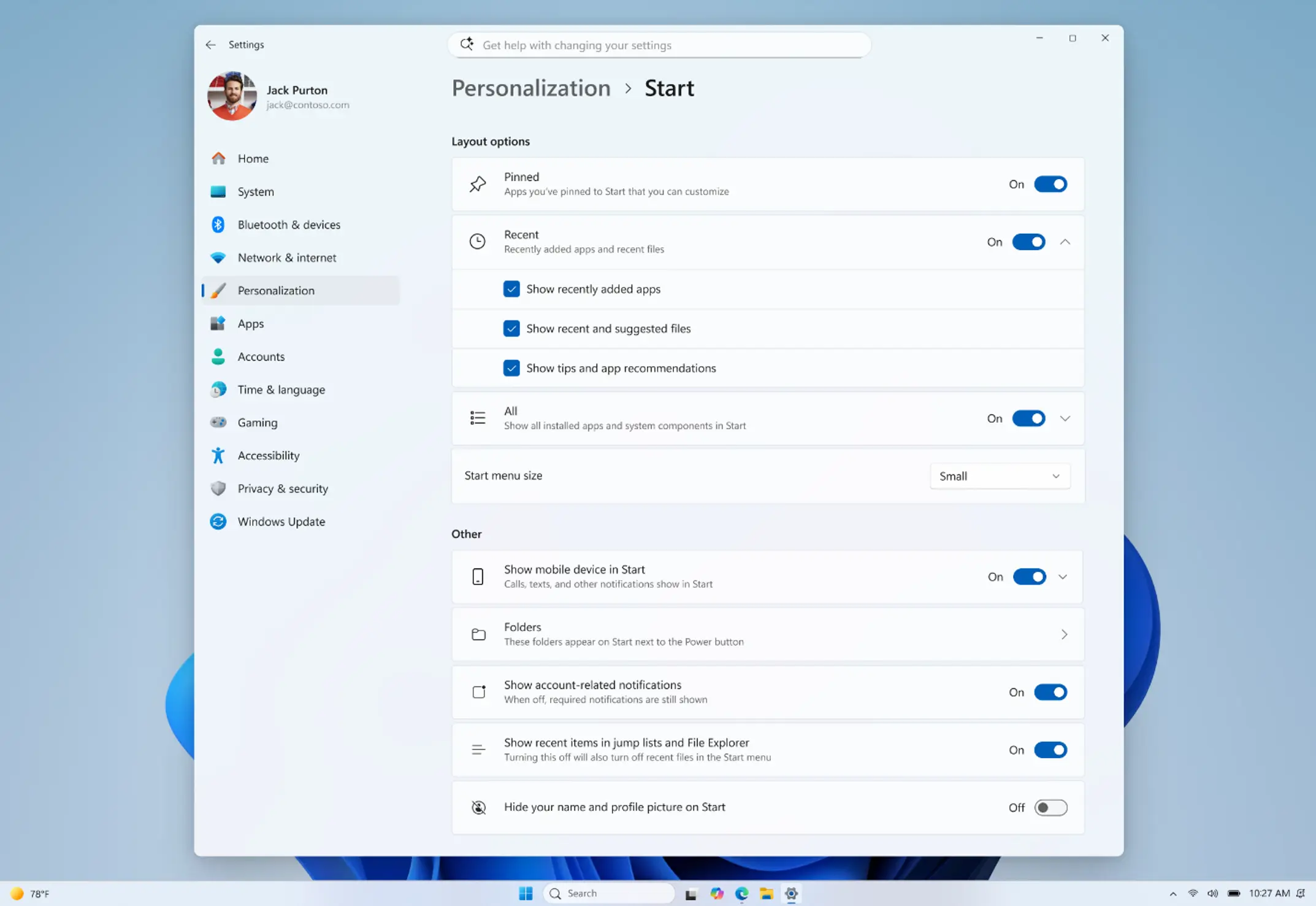
This update brings a number of improvements for the Start menu as first outlined in the Making Taskbar and Start more personal Insider blog. This includes:
- Renamed “Recommended” section to “Recent” in Start and Settings page
- Section-level toggles to independently show or hide Pinned, Recommended, and All.
- Choose between a small and large Start menu, in addition to “Automatic (default)” setting option that’s already available today
- The option to hide your name and profile picture in Start
- Redesigned Start menu settings page
[Search]
- Search by Substring: Files with compound names or content (e.g., MeetingNotesApril, ProjectStatusReport) are now easily discoverable by typing “april” or “status”.
[Taskbar]
- Fixed a few small visual polish issues when using the taskbar in alternate positions. Thanks Insiders that have been sharing feedback so far!
- You can now use a touch swipe to invoke the taskbar when using alternate taskbar positions.
Known issues include the following:
[Reset PC]
- [Fixed] Resetting your PC may get stuck when using “Reset this PC.” To complete the reset successfully, choose the cloud download option (Cloud PBR) instead of local.
For those in the Beta Channel, Microsoft released build 26220.8544 with the new spinners and other changes:
[Windows design]
- We are introducing consistent solid (donut) spinners across key Windows scenarios including Boot, Logon, Restart, Shutdown, and Update. This update replaces legacy spinner visuals to deliver a more cohesive and modern experience aligned with Windows design standards. Users will now see a unified spinner behavior with corresponding status text (e.g., “Restarting”, “Working on updates”, “Welcome”) across these flows, improving perceived reliability and visual consistency.
[Search]
- Search by Substring: Files with compound names or content (e.g., MeetingNotesApril, ProjectStatusReport) are now easily discoverable by typing “april” or “status”.
[Windows Ready Print]
- Last month, we introduced a change where new printer installations use IPP by default when supported to simplify setup and improve reliability (see our third-party driver deprecation timeline: End of Servicing Plan for Third-Party Printer Drivers on Windows). This month, we’re adding a new toggle in Settings > Bluetooth & devices > Printers & scanners > Default install printers using Windows Ready Print to give you control over this behavior.
- When enabled, Windows installs supported printers using IPP by default. When turned off, Windows may use other available installation methods.
- This experience is part of our modern print platform, now called Windows Ready Print, designed to deliver a more consistent, reliable, and simplified printing experience.
You can find the release notes for build 26300.8553 here and build 26220.8544 here.

Microsoft delays Fable out of 2026 to give it a dedicated “moment to shine” and avoid GTA VI